
A Galaxy A53 5G can show a not enough space warning during a One UI update even when the owner thinks there is room left. The usual bench pattern is a 128 GB SM-A536B, SM-A536U, or carrier A53 that has photos on a microSD card, several chat apps with large local caches, and an OTA package waiting inside internal storage. The phone is not asking for space on the memory card. It needs working room on the internal storage partition where Android downloads, verifies, unpacks, and stages the update.
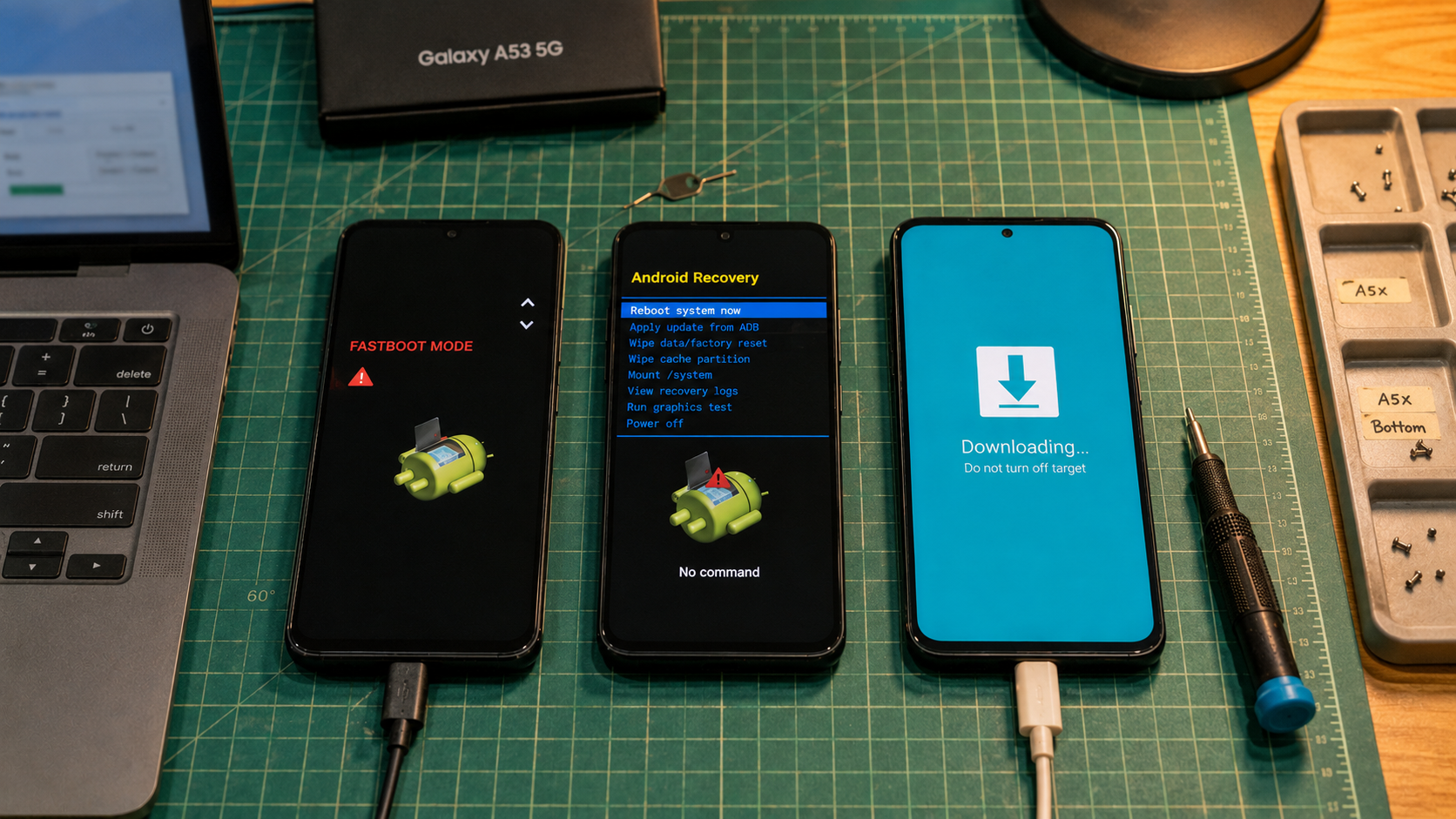
Do the checks in a calm order. Do not factory reset the phone just because the update screen refuses to continue. A reset can erase local data and still leave the same regional update queue waiting after setup. Start with the storage page, clear safe cache, move owner media, then decide whether Recovery mode or service firmware work is needed.
Start with the A53 storage screen
Open Settings, then Battery and device care, then Storage on the Galaxy A53. On newer One UI builds this page may group items as Apps, Images, Videos, Audio files, Documents, System, and Other. The number that matters for an OTA is the free internal storage number, not the total space across a microSD card.
For an A53 with 128 GB storage, I like to see several gigabytes free before a major One UI package. A monthly security patch usually needs less room than a jump such as One UI 6 to One UI 7, but the owner does not get a clean size rule on the error screen. The package may download, fail verification, then download again after another attempt. That can leave temporary update data until the phone cleans it up.
If the storage page shows less than 5 GB free, do not touch Recovery mode yet. Remove obvious local content first. If it shows 10 GB or more free and the update still claims there is not enough room, treat it as a stale update package, cache problem, or regional firmware queue issue.
Separate app cache from the OTA package
App cache is the safest first cleanup because it does not normally remove accounts, chats, or app documents. On the A53, go to Settings, then Apps, choose the heavy app, open Storage, then use Clear cache. Do not press Clear data unless the owner understands that the app may sign out or remove local files.
Start with apps that build large temporary folders. Social video apps, map apps, browsers, shopping apps, and messaging apps often hold enough cache to block an update. Messaging apps deserve care. Clearing app cache is usually fine, but deleting media inside the app can remove local copies of photos, voice notes, and documents. Back up or export anything important before cleaning chat storage.
The mistake I see from junior repair counters is clearing data on Samsung services, Google Play services, or the owner’s main chat app to chase a quick number. That is a poor first move. Clear app cache, uninstall games or duplicate apps the owner agrees to remove, then restart the phone and check Software update again.
Move media off internal storage
The Galaxy A53 supports a microSD card on many market variants, and some carrier pages describe card support up to 1 TB. That helps with photos, videos, downloads, and offline media. It does not make the internal system partition larger, and it does not let the OTA installer stage the package on the card.
Move camera videos, downloaded movies, WhatsApp exports, Telegram files, and large APK backups away from internal storage. Use My Files to copy them to a known folder on the card or to a computer. After copying, open the moved files from the new location before deleting the originals. This small check prevents the common repair-desk argument where a copy silently failed and the owner only notices after cleanup.
- If the phone has a microSD card, move owner media there and keep apps on internal storage.
- If the card is slow, damaged, or repeatedly unmounts, use a computer backup instead.
- If the phone has work profile data, secure folder data, or encrypted app folders, ask the owner to unlock and export those items from inside the app.
- If the USB connection only charges, change the cable before assuming the phone has a storage fault.
When the A53 connects to Windows for file transfer, use a proper data cable and choose File transfer on the phone. A charge-only cable can waste time. On a repair PC, Samsung USB drivers and a clean USB port matter more for firmware tools than for simple media copying, but the cable check belongs early because it affects both paths.
Check One UI storage behavior before deleting apps
On One UI 5, One UI 6, and One UI 7 builds seen on the Galaxy A53 family, the updater works through the normal Software update screen. The phone downloads the package to internal storage, verifies it, then reboots into the update process. If the download already failed once, you may see less free space than expected until the phone restarts and clears temporary pieces.
Restart the A53 after cache cleanup and media movement. Wait a few minutes after boot. Then return to Settings, Software update, Download and install. If the package starts from zero again, leave the phone on Wi-Fi and power. If it jumps straight back to not enough space, go back to Storage and look for a category that did not shrink.
System and Other can be frustrating because One UI does not expose every file behind those labels. Do not promise the owner that all of Other can be deleted. Some of it is app data, update staging, thumbnails, logs, and protected Android storage. If Other is huge and app cache cleanup does not change it, the safer next check is Recovery mode cache wiping, then a backed-up reset only if the phone remains blocked.
Use recovery cache only for the right symptom
Wiping the cache partition in Samsung Recovery mode can help when an A53 update keeps failing after normal cache cleanup, or when the phone behaves badly after a completed OTA. It does not erase photos or user accounts, but it is still a repair mode. Read the screen carefully and do not select Wipe data or factory reset.
For many Galaxy A series units, Recovery mode entry is more reliable when the phone is powered off and connected by USB-C to a computer or compatible USB-C accessory. Then hold Volume Up and Power until the Samsung logo appears, release the keys, and wait for the recovery menu. Use the volume keys to highlight Wipe cache partition, use Power to select, confirm, then choose Reboot system now.
There are two caveats. First, button timing and USB behavior can vary by region, carrier firmware, and One UI build. Second, Samsung has changed recovery menu behavior across newer releases, so do not keep forcing key combinations if the menu is not appearing. If the phone only reboots normally, return to the non-destructive checks or use an authorized service path.
Read the update and region clues
The Galaxy A53 has several model and region lines, including international SM-A536B, North American SM-A536U style variants, and local carrier builds. The same public update name may arrive at different times by region. A phone bought in one market and used in another can sit in an awkward place where the region code, SIM, carrier approval, and update server do not line up cleanly.
Check Settings, About phone, Software information. Note the model number, service provider software version, Android version, One UI version, and build number. The owner does not need to change these values. They help a technician decide whether the phone is waiting for the correct package or whether someone previously flashed mismatched firmware.
If the A53 shows a normal One UI 7 Android 15 package for its region and only complains about storage, stay with storage repair. If the model number, region code, and installed build look mismatched, stop before using Odin or any firmware package. Flashing the wrong regional package can break network features, wipe data, or leave the phone stuck at setup. HalabTech’s recovery mode overview explains where Recovery, Download Mode, Fastboot, and ADB sideload fit, but a Samsung A53 OTA storage warning usually does not begin in Download Mode.
For a related post-update failure path, see HalabTech’s Galaxy A54 boot loop after OTA before factory reset. The A54 case is a different symptom, but the same rule applies. Back up accessible data before destructive repair.
Use this bench decision path
- If internal storage is under 5 GB free, clear app cache, remove unused apps with the owner’s approval, and move media away from internal storage.
- If the phone uses a microSD card, treat it as media storage only. Do not expect the OTA package to install from the card.
- If the update failed once, restart the A53, wait after boot, and check whether temporary update files clear by themselves.
- If free space is healthy but the warning remains, wipe the cache partition from Samsung Recovery mode and avoid the factory reset option.
- If Recovery mode is unavailable or the menu has changed on that build, stop forcing key combinations and use official support or a repair desk.
- If firmware region, carrier code, or build history looks wrong, do not flash a package from a random model. Match the exact model and region or escalate.
- If the phone asks for account verification after any reset, only the owner’s account can complete setup. Do not use bypass tools.
When a reset makes sense
A factory reset is a last owner-approved repair step for this symptom. Use it when the phone has a reliable backup, the owner knows their Samsung and Google account credentials, app cache and media cleanup did not free enough internal storage, and Recovery cache wiping did not clear the stale update behavior.
Before reset, back up photos, chat exports, authenticator recovery codes, banking app requirements, work profile data, and Secure Folder content. Remove accounts only if the owner understands the setup consequences. Do not reset a phone that belongs to a workplace, school, or another person without proper authorization.
After reset, install the OTA before restoring every large app and media folder. This matters on the A53 because restoring a full chat archive and offline video library first can recreate the same not enough space warning. Update the clean system, then restore user content in stages.
What the repair desk should avoid
Do not sell a firmware flash for every A53 storage warning. Download Mode and Odin are useful repair tools when the firmware path is actually damaged, but they are heavy tools for a storage problem. They can wipe data, require exact model and region matching, and create a worse fault if the package is wrong.
Do not delete random folders with a file manager while Android is running. Do not clear data from apps that hold the owner’s only copy of a chat or document. Do not chase unofficial cleaners that promise to remove System storage. Those apps often remove the easy cache you could clear yourself, then add more junk.
The clean repair answer is simple enough, but it has to be done in order. Confirm the free internal storage, clear safe app cache, move real media, restart, retry the OTA, use Recovery cache if the warning survives, then reset or firmware-repair only after backup and model checks. That path fixes most Galaxy A53 not enough space update cases without turning a storage warning into a data loss job.