
If an Android phone is stuck on a repair screen, the first mistake is treating every screen as the same problem. A Pixel in Fastboot, a Samsung Galaxy in Download Mode, and a Redmi in recovery can all look like “the phone needs software,” but each mode talks to a different tool and carries a different data risk.
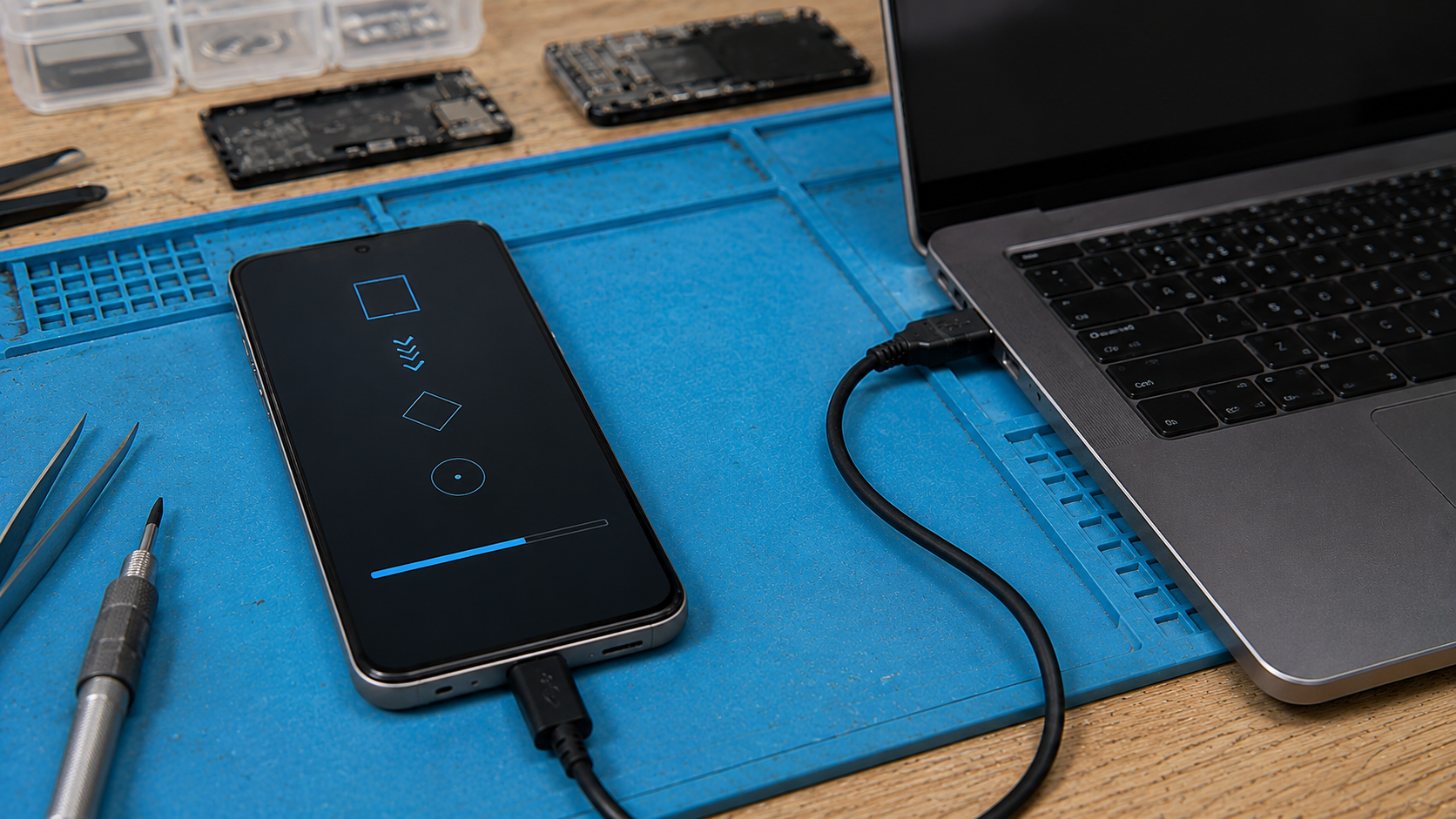
The better repair question starts with the screen in front of you: which mode is open, which tool can talk to it, and which step preserves the most data? This guide is a bench map for that decision. It keeps the owner’s data, model variant, region, USB detection, and package choice in the same workflow before reset or firmware enters the conversation.
Read the screen before opening a tool
Start by matching the visible mode to the repair lane. The phone screen, Windows device name, and transfer behavior usually tell you more than the owner’s short description.
Fastboot
Look for a bootloader screen with Start, Restart bootloader, Recovery mode, product name, slot info, or lock state. Windows should see an Android Bootloader Interface or a fastboot device. Use it for bootloader checks, slot checks, moving to recovery, and supported factory-image work. Skip photo recovery attempts, normal ADB shell commands, and random ZIP sideloading from this screen.
fastbootd
Newer dynamic-partition devices can move from bootloader Fastboot into fastbootd during supported repair work. The PC still talks through Fastboot, but the phone is handling userspace partition operations. Keep the cable still, confirm the original software target, and avoid improvised partition commands on a customer phone.
Stock recovery
Android Recovery, No command, Reboot system now, Wipe data, and Apply update from ADB all belong to the recovery lane. The computer may see nothing until sideload is selected. Use recovery for restart, wipe decisions, and signed OTA sideload. Treat it as a decision screen, not a file browser.
Samsung Download Mode
Galaxy phones in Download Mode usually show a warning or Downloading screen, often with product or binary state. A Windows PC should detect the Samsung USB driver path or an Odin-style COM port. This lane is for Galaxy firmware repair and driver diagnosis after the exact model, region, and data risk are clear.
ADB sideload
ADB sideload opens only after recovery asks for it. On the computer, adb devices should show sideload. Use it for a matching signed OTA package. Data pulling, broad package testing, and USB debugging assumptions belong somewhere else.
That map is the whole article in miniature. Name the mode, check USB detection, confirm the model, then choose the smallest repair that can work.
Do these checks before any reset
Write the model family first. “Galaxy A54” is not enough for firmware work if the exact model is SM-A546B, SM-A546E, a carrier variant, or a regional build. “Redmi Note 12” is not enough if the package could be Global, EEA, India, China, or carrier-specific. “Pixel 7” is usually cleaner, but you still need the right full OTA build when sideloading.
Check power next. A phone that is below 20 percent, warm, or randomly disconnecting should not be pushed through a long transfer. Charge it, change the cable, and use a direct USB port before blaming the mode. A surprising number of Odin and Fastboot failures are just bad cables, front-panel USB ports, or hubs dropping the connection.
Ask what happened before the screen appeared. A failed OTA, a full storage warning, a dropped phone, a battery drain, and an interrupted flash are different cases. Recovery after an OTA points toward package verification or data partition trouble. Download Mode after a cable flash points toward driver, firmware, model, or connection trouble. Fastboot after a button issue may be as simple as a stuck volume key.
Fastboot and fastbootd use the bootloader lane
Fastboot talks to the bootloader before Android has started. On Pixel, OnePlus, Motorola, and many Xiaomi or Poco devices, it can show product information, boot slots, locked or unlocked state, and menu choices such as Start or Recovery mode. Owner photos remain outside reach at this stage, and normal ADB commands will not respond from the bootloader lane.
On Windows, a healthy Fastboot connection should appear as an Android bootloader-style interface. If fastboot devices shows nothing, do not start changing firmware plans yet. Try another USB-C cable, a direct motherboard port, and a second machine. Also check Device Manager for a driver problem. If the phone changes state when the cable moves, treat the port or cable as suspect before treating the software as damaged.
fastbootd is different from classic bootloader Fastboot. Android 10 and newer devices can move some Fastboot work into userspace for dynamic partitions. On a repair bench, the important point is simple: if the phone changes from Fastboot to fastbootd during a supported repair flow, do not unplug it just because the label changed. If it landed there after an unofficial ROM attempt, slow down and confirm the original software target before doing anything destructive.
Recovery mode is where the data decision happens
Stock recovery is the screen where you choose between a normal restart, a cache or repair option where the model offers it, ADB sideload, or wipe data. The wipe option is a real erase. If the owner has not backed up photos, WhatsApp history, authenticator apps, notes, and app data, stop and explain the risk before selecting it.
On Pixel phones, recovery may first show No command. On Samsung, button timing and USB connection can affect how recovery is entered. On Xiaomi and Redmi phones, Mi Recovery may offer reboot, wipe, and connect-to-assistant style options depending on the software generation. The labels vary, but the repair logic stays steady: recovery is for signed update or reset decisions after the package and data risk are known.
If recovery says the package cannot be verified, installation aborted, or the update is older than the current build, record the exact message. A wrong region package, wrong build, modified system state, or rollback rule can all create similar-looking failures. Repeating random ZIP files turns a clean diagnosis into a messier repair.
ADB sideload is a narrow lane
ADB sideload only opens after the phone is in recovery and the sideload option is selected. On the computer, adb devices should show the device with the word sideload. This temporary update-transfer state differs from USB debugging inside a booted Android system.
For Pixel phones, full OTA packages are useful because they can restore the device’s original firmware after a failed OTA without unlocking the bootloader or wiping in the same way a factory image flash would. The package still has to match the device. If the phone is a Pixel 7, do not use a Pixel 7a or Pixel 7 Pro package. If you are unsure, stop and identify the model before transfer.
During sideload, the PC percentage and phone percentage may not move together. The computer can finish sending while the phone is still verifying and installing. Do not unplug just because the terminal looks idle. If it fails, keep the exact recovery message. That message is more useful than trying five files.
Samsung Download Mode needs model discipline
Samsung Download Mode is its own lane. A Galaxy A52, A54, S23, S24, or Tab in Download Mode expects the Samsung USB driver stack, and an Odin-style workflow may show a COM port when the connection is right.
Before firmware, try the least destructive exit first. If the screen shows a restart combination, use it. If the phone boots normally after exit, check storage, battery, and the pending update from Settings before touching firmware. A phone that escaped Download Mode should leave the bench without a flash unless the symptom comes back.
If it returns to Download Mode or fails firmware, focus on the exact model and region. Galaxy retail names hide variants. CSC, carrier build, and region can decide whether a package is accepted. If the tool fails at setup connection, change cable and USB port first. If it fails after transfer starts, note whether the failure is model mismatch, authentication, binary level, or disconnect behavior.
Xiaomi and Redmi cases depend on region and buttons
Xiaomi, Redmi, and Poco phones often arrive stuck on Fastboot because of a software fault, a drained battery, or a physical volume button issue. Check the button before assuming firmware. A stuck volume-down key can make the phone return to Fastboot every time, even if the system is otherwise fine.
Mi Recovery and newer Xiaomi recovery screens are also package-sensitive. Region matters. A recovery package for one channel can fail on another. If the owner says the update came over the air and the phone now returns to recovery, try Reboot first, charge the phone, and confirm the exact model and region before any manual package path.
For Redmi Note 12 and Redmi Note 13 families, treat repeated return to Fastboot as a decision point, not a command invitation. If the buttons are clean, the battery is stable, and the PC detects Fastboot reliably, then software recovery may be reasonable. If detection drops or the phone heats and powers off, stop chasing software and check hardware.
Use this bench decision path
- Photograph or write down the screen before pressing anything. The mode name, product line, and warning text matter.
- Charge for 20 to 30 minutes if the battery state is unknown.
- Identify the exact model from the screen, box, SIM tray label, purchase record, or working settings screen.
- Choose the matching computer tool path: Fastboot for bootloader, ADB only when recovery says sideload, Samsung driver or Odin-style detection for Download Mode.
- Try the non-destructive exit first: Start, Reboot system now, or the Samsung restart combination shown on screen.
- Before reset or firmware, ask whether the owner has a current backup and whether important app data is replaceable.
- If a package is needed, match model, region, build path, and update type. If any of those are unknown, stop and verify.
This sequence is slower than “flash it,” but it fixes more phones cleanly. It also protects the cases where the right answer is a cable, a driver, a stuck button, a charge cycle, or a data-preserving sideload instead of a reset.
Failure messages worth recording
Write down the exact text before repeating the repair. The wording often decides whether the next move is a driver check, package change, battery check, or a stop point.
Device not listed in Fastboot
Start with cable, port, driver, and bootloader state. Change to a known data cable, use a direct USB port, then check Device Manager before changing the firmware plan.
adb shows unauthorized
That belongs to normal Android ADB authorization. Recovery sideload has a different state. Rebooting between the two without noting the screen can send the repair down the wrong lane.
adb shows sideload
Recovery sideload is active. Send only the matching signed OTA package and keep the exact recovery result if verification fails.
Odin-style tool shows no COM port
Work the Samsung driver and USB path before firmware. Use a data cable, direct motherboard port, current Samsung USB driver, and a second PC when the port behavior is inconsistent.
Installation aborted
Package mismatch, verification failure, modified system state, rollback rules, and storage faults can all end with similar text. Record the recovery message and build context before retrying.
Phone returns to Fastboot after every reboot
Check boot slot behavior, system damage, battery state, and stuck buttons. If USB detection drops or the phone heats and powers off, hardware assessment comes before firmware attempts.
When firmware or reset is the right move
Reset becomes reasonable when the model is known, data risk is accepted, and the symptom points to user-data corruption or a recovery state that cannot boot cleanly. Firmware becomes reasonable when the exact model and region are known, USB is stable, and the failure matches a software package problem rather than a cable, battery, or board fault.
Stop before destructive work when the model is uncertain, the package source is unclear, the phone disconnects on multiple cables and PCs, recovery cannot mount expected partitions, or the owner has irreplaceable data and no backup. A good repair note at that point should say the mode seen, USB behavior, exact model evidence, package attempted if any, and which data-risk steps were avoided.
The repair desk rule is simple. Do not choose the tool first. Choose the mode first. Then choose the least destructive action that fits that mode.