
A Redmi Note 12 that comes back to the Fastboot screen after every reboot is usually telling you that Android is not passing the early boot handoff. The screen may look simple, with the Fastboot label and the Xiaomi repair mascot, but the cause can be very different from one phone to another. A Redmi Note 12 4G after a patched boot image, a Redmi Note 12 5G after a failed package, and a Redmi Note 12 Pro after a risky command do not deserve the same first move.
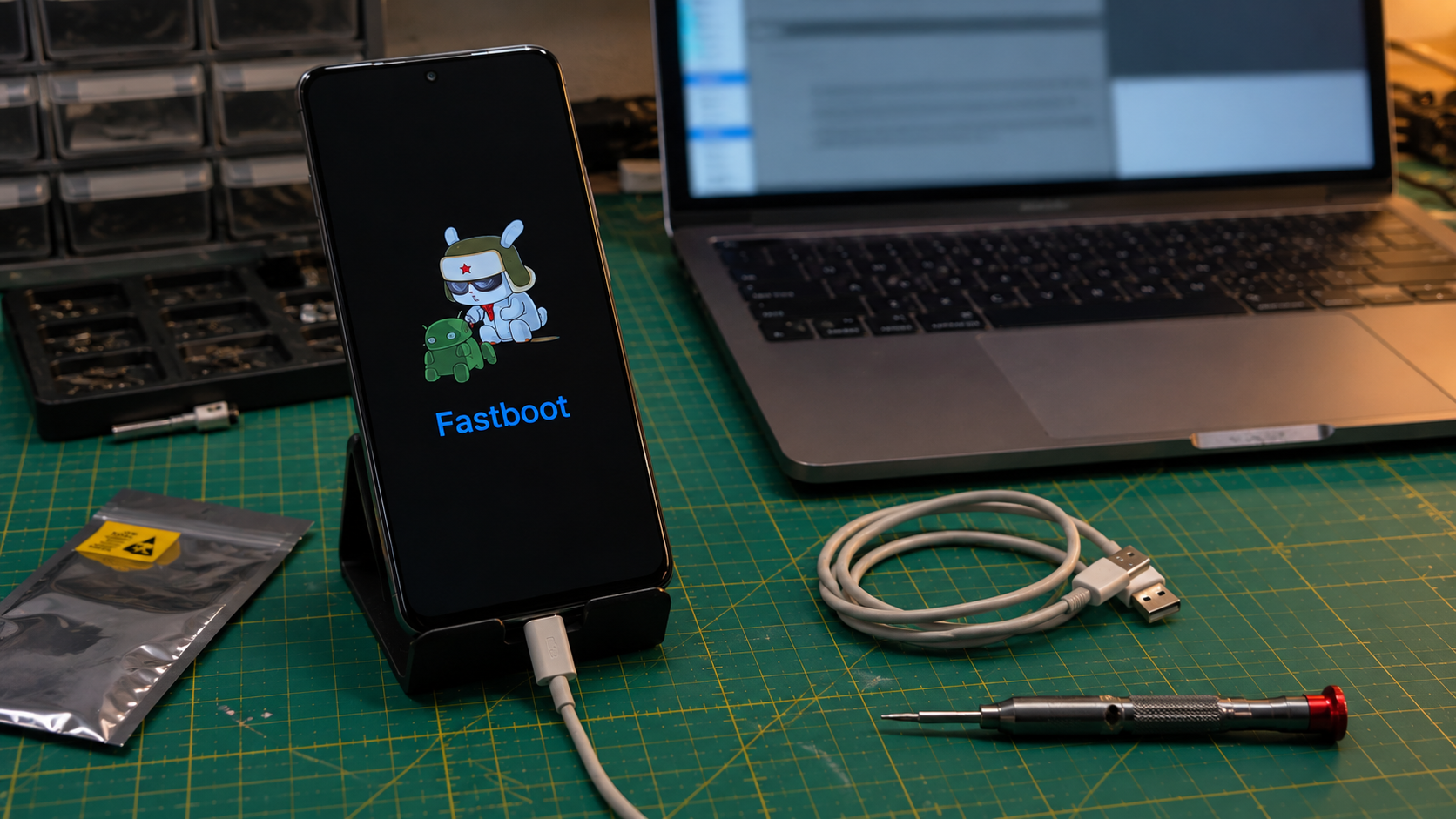
Start by treating the phone as an owner-authorized repair case with data at risk. Do not unlock a bootloader for someone, do not wipe because a tool says it is quick, and do not flash a package that only looks close. The safe goal is to identify whether the loop is a stuck key, a normal Fastboot exit problem, a bad boot image, a fastbootd state, a wrong region build, or a deeper MediaTek repair job.
This article is written for the Redmi Note 12 family, including common 4G, 5G, and Pro variants. The exact model and region still matter. A Global Redmi Note 12 4G with Snapdragon 685 is not the same repair target as a Redmi Note 12 5G with Snapdragon 4 Gen 1, and the Pro models can move you into a different chipset and firmware path.
Confirm it is a real Fastboot loop
First remove the case and check the buttons. A tight case, dirt around Volume Down, or a pressed side key can force the phone back into Fastboot on every restart. Hold Power for about fifteen seconds until the screen goes black, release it, and let the phone try to boot without touching the volume keys. If it returns to Fastboot only while Volume Down is pressed or stuck, repair the button path before touching firmware.
Charge the phone for at least thirty minutes on a normal charger. Low battery and unstable power can make a phone restart during early boot and look like a software loop. Use a known data cable only when you need the computer. A charge only cable can make the phone power up but will not give you a useful Fastboot connection.
On the computer, open a terminal in the platform tools folder and run fastboot devices while the phone is on the Fastboot screen. If the serial appears, the computer can talk to the bootloader. If nothing appears, fix the USB path first. Use another cable, another direct USB port, and the correct Android USB driver for Windows. ADB is not the test here because ADB talks to Android or recovery, while this screen needs fastboot.
Separate bootloader Fastboot from fastbootd
Android 10 and newer devices can have two fastboot style environments. Bootloader Fastboot is the screen most Redmi owners recognize. Fastbootd is a userspace fastboot mode used for dynamic partitions such as system and vendor. On some Xiaomi repair sessions, the command fastboot reboot fastboot moves the phone into fastbootd, then a failed or mismatched operation leaves the owner confused because every restart seems to return to a fastboot style screen.
If the screen says Fastboot with the Xiaomi graphic, treat it as bootloader Fastboot. If the screen looks more like recovery text and lists fastbootd, recovery, or reboot options, treat it as userspace fastboot. The commands and risks are different. Flashing boot.img belongs to the boot partition path. System and vendor work may involve dynamic partitions and fastbootd. Mixing those ideas is how a small repair becomes a full firmware recovery.
Do not run random fastboot commands to see what happens. Read the phone state, write down the exact model from the box or Fastboot output when available, then decide. If the phone entered Fastboot after a single command and no image was flashed, a forced restart or the correct reboot option may be enough. If it entered Fastboot after flashing boot, vbmeta, init_boot, recovery, or a full ROM script, assume the flashed file needs to be checked.
When the loop started after a patched boot image
A common Redmi Note 12 repair story starts with Magisk. The owner patched a boot image, flashed it, saw no Android boot, and now every reboot returns to Fastboot. The first repair question is whether the patched image came from the exact firmware package that was already on the phone. Same model name is not enough. The Android base, MIUI or HyperOS build, region code, and update channel have to match.
For a Redmi Note 12 4G or Redmi Note 12 5G with an unlocked bootloader, the cleanest software recovery is often to flash the original stock boot.img from the same package that produced the patched image. That is still a repair step with risk. If fastboot reports that flashing is not allowed, stop. If the bootloader is locked, do not look for a trick around it. Use recovery options, official service, or a full authorized repair path.
If the phone had recently updated from MIUI to HyperOS, do not reuse an older boot image just because the filename says Redmi Note 12. OTA packages can change the boot image while leaving the owner with screenshots or files from the previous build. A patched image from the old build can send the phone straight back to Fastboot after reboot.
Be careful with init_boot advice from other devices. Some newer Android devices patch init_boot, while many Redmi Note 12 cases discussed by owners still revolve around boot.img. The repair decision comes from the exact firmware layout of that phone and build, not from a generic root tutorial.
Choose between stock boot and full fastboot ROM
If the loop started right after one boot image change, and the model, region, and build are known, restoring the exact stock boot image is the narrow repair. It touches less than a full flash and preserves more options. It also keeps the diagnosis clean. If Android boots after the stock boot image, back up immediately before trying any root or update work again.
If the package is unknown, the phone had multiple failed flashes, or the screen changed after running a ROM script, a full fastboot ROM may be safer than guessing one partition at a time. The package must match the device family, codename, region, and bootloader state. A Global package, India package, China package, Xiaomi.eu package, and carrier package can have different assumptions. A close name can still be wrong.
Use data preserving scripts only when you understand what they do and the owner has accepted the risk. Any script named flash all and lock deserves extra caution. Locking the bootloader after a wrong region or modified system can leave the phone harder to recover. If the owner has no backup, confirm photos, chat exports, authenticator apps, banking access, and Google account access before any wipe or full firmware repair.
Read the chipset caveat before using repair tools
The Redmi Note 12 name covers more than one hardware path. Snapdragon based models are usually handled through Fastboot, recovery, and matching fastboot ROM packages when the bootloader and device state allow it. MediaTek based Pro variants can involve a different low level repair route, and some reports around Xiaomi and Redmi devices mention trouble after fastboot reboot fastboot on MTK hardware.
SP Flash Tool is not a casual exit button. It can write low level partitions on MediaTek devices when the right files, drivers, and authorization path are available, but a wrong scatter, wrong preloader, or unstable cable can make the phone worse. For an owner at home, that is a stop point. For a repair desk, it is a controlled bench job with model verification, battery stability, correct package files, and data risk explained first.
If the phone is a Redmi Note 12 Pro, Pro Plus, or another regional variant and you are not sure whether it is Snapdragon or MediaTek, stop before applying advice written for a different model. Check the model number, codename, purchase region, and original software channel. The Fastboot screen alone does not prove the correct firmware family.
Use this bench decision path
- If Volume Down or the case is holding the key, fix the physical button path and retest with no firmware changes.
- If the phone exits Fastboot and boots once, back up data before any root, update, reset, or package repair.
- If fastboot devices shows nothing, solve the USB cable, port, and driver problem before judging the phone software.
- If the loop began after a patched boot image and the bootloader is unlocked, restore the exact stock boot image from the same firmware build.
- If fastboot says flashing is not allowed, stop and do not try to force around the bootloader state.
- If the build or region is unknown, avoid single partition guessing and identify the exact fastboot ROM package first.
- If the phone entered fastbootd after a dynamic partition command, decide whether you are in userspace fastboot before flashing bootloader Fastboot targets.
- If the model is MediaTek based or needs SP Flash Tool, move it to a controlled repair bench or authorized service path.
- If account ownership, backup, or warranty status is unclear, stop before reset, full flash, or bootloader lock commands.
What recovery mode can and cannot fix
Mi Recovery may still open with Power and Volume Up if the phone is not fully trapped in Fastboot. Recovery can be useful for a normal reboot, a data wipe approved by the owner, or an official update package path on supported builds. It is not a magic repair for a wrong boot image. Wiping data may remove the owner files and still return to Fastboot if the boot partition is the problem.
If recovery opens and the phone has important data, do not rush to wipe. Try reboot once. If it comes back to Fastboot, write down exactly what happened before the loop started. A failed OTA, a Magisk patch, a fastbootd command, and a full ROM script each point to a different repair. Recovery is a place to gather options, not a reason to erase first.
If recovery shows account, activation, or lock related prompts after a reset, only the owner should complete that flow. A repair article cannot turn ownership checks into a software step. Use official account recovery or proof of purchase support when credentials are missing.
When to stop flashing and inspect hardware
Fastboot returning after reboot can still be hardware related. If the phone disconnects when the cable moves, gets hot near the USB port, restarts during every flash attempt, or drops from fastboot devices on two computers, the repair path has moved away from simple software. A weak battery, damaged USB C connector, liquid exposure, or storage fault can mimic a firmware loop.
Do not keep pressing Start in a flashing script through an unstable connection. A partial write is worse than a clean failure. Test with a short known data cable, a direct motherboard or laptop port, and enough battery. If the connection still drops, inspect the port and power path before another firmware attempt.
The clean finish is simple. Prove the buttons are not forcing Fastboot, prove the computer can see Fastboot, match the exact Redmi Note 12 variant and software package, then choose the narrowest repair that fits the history. If the history is unknown or the tool path points to MediaTek low level flashing, stop and treat it as a bench repair, not a quick home reboot fix.