
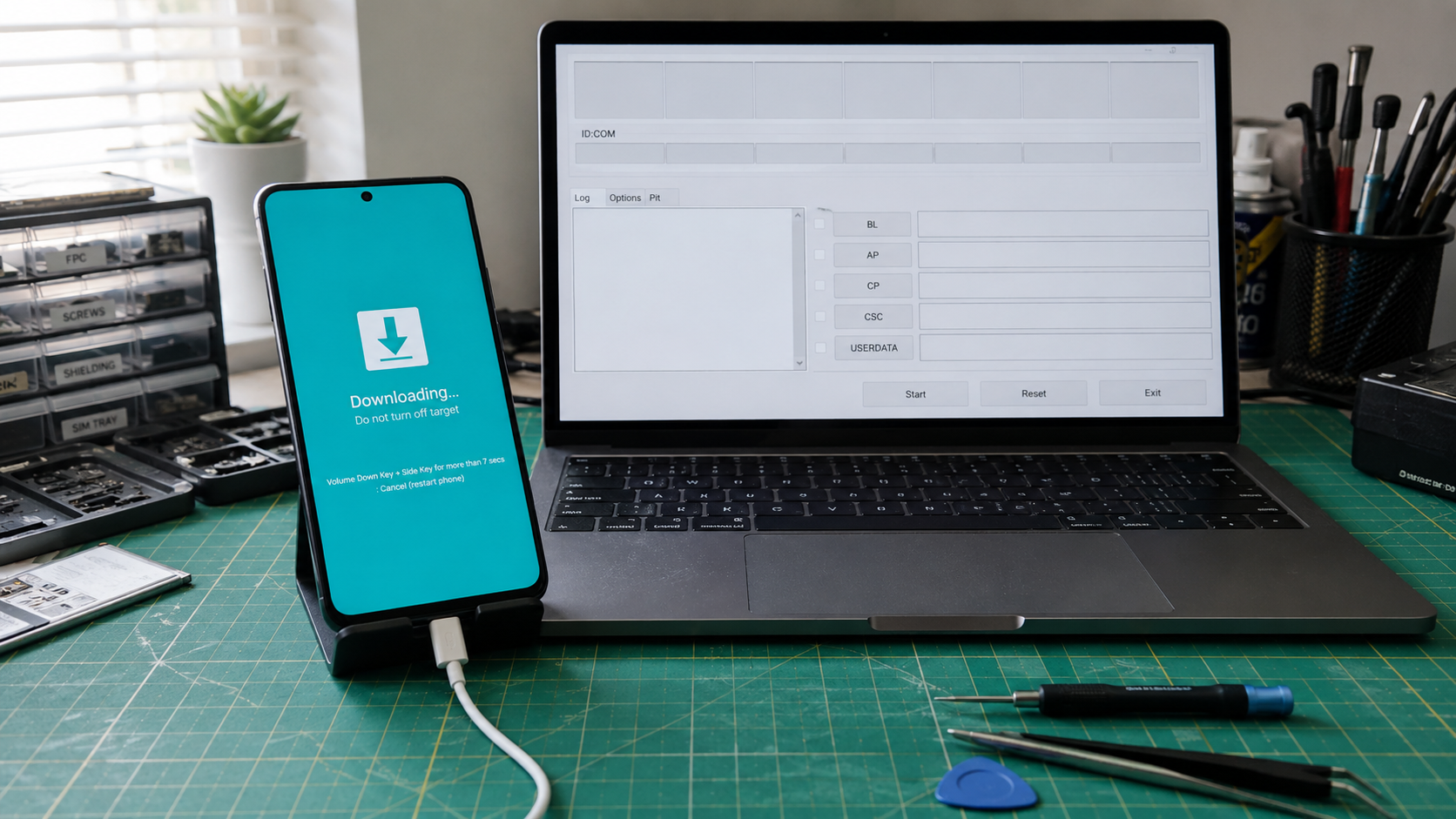
A Galaxy A52 can look normal to Windows 11 and still stay invisible to Odin. The owner installs the Samsung USB driver, plugs in the phone, sees Windows react, opens Odin, and the COM area stays blank. That symptom is usually not solved by pressing Start, changing random Odin options, or flashing a file first. Treat it as a Download Mode USB handshake problem until the PC proves otherwise.
This guide is for owner authorized checks on the Galaxy A52 family, including SM-A525F, SM-A525M, SM-A526B, SM-A526U, SM-A526U1, and nearby A52s models such as SM-A528B when the same Download Mode symptom appears. Firmware work must still match the exact model, carrier, region, and binary revision. Do not use this path to bypass an account lock, change identifiers, or force a package that does not belong to the phone.
At the HalabTech repair desk, this case usually starts with one wrong assumption. A junior tech sees Samsung drivers installed and jumps straight to firmware. The safer first check is boring. Confirm the phone is in real Samsung Download Mode, confirm Windows sees a USB event in that mode, then decide whether the fault is cable, port, driver binding, Odin session, or the phone hardware.
Confirm the A52 is in real Download Mode
Odin does not detect a Galaxy A52 in the same way Windows detects it for photos or file transfer. A powered on phone can appear in File Explorer as an MTP device. A phone with USB debugging already trusted can appear in ADB. Odin needs the Samsung Download Mode interface.
Power the A52 off. Connect the USB cable to the Windows PC. Hold Volume Up and Volume Down together, then connect the cable to the phone if it is not already connected. On many A52 and A52 5G builds, the warning screen appears only when the cable is connected to a live computer. Press Volume Up once to continue. The phone should show the Download Mode screen with the downloading warning.
If the phone boots Android instead, remove the case, check that both volume keys click cleanly, charge the phone for at least twenty minutes, and try again. If it loops back to Android every time, do not call the Samsung driver the main fault yet. You may be dealing with button timing, a weak volume key, a USB port that is not negotiating, or a phone that is not powered down fully.
Separate the three Windows detection paths
Windows 11 can bind the same Samsung phone through different interfaces. MTP handles file transfer after Android boots. ADB handles developer access only after USB debugging is enabled and trusted. Odin uses the Download Mode interface. Seeing one path work does not prove the other two are healthy.
This is why an A52 can show in Device Manager while Android is running, then disappear when it enters Download Mode. It is also why Odin can remain blank even after a driver installer says setup completed. The driver package may be present, but Windows still has to bind the correct interface when the phone is sitting on the Download Mode screen.
Open Device Manager before launching Odin. Leave it visible while you connect the A52 in Download Mode. Watch for a new entry under USB controllers, modems, portable devices, Android devices, or other devices. The category matters less than the change. If Device Manager refreshes, Windows sees something. If nothing moves, stay with cable, USB port, phone connector, or power state checks.
Use the plainest cable test first
The Galaxy A52 uses USB C, and many USB C cables are charge only or damaged enough to pass power but fail data. Start with a short, known data capable cable. Use a direct laptop USB port or a rear motherboard port on a desktop. Skip hubs, monitor ports, docks, front case extensions, long adapter chains, and loose USB C to USB A converters during diagnosis.
Change one variable at a time. First cable. Then PC port. Then a second Windows machine if one is available. Reinstalling the same driver five times will not fix a cable with no data pins, and it can make the bench notes harder to trust.
- If the phone charges but Device Manager does not refresh, suspect cable, USB port, debris in the A52 port, or board level USB damage.
- If Windows connects and disconnects repeatedly, try a shorter cable and inspect the USB C port for lint, moisture marks, looseness, or movement when the cable is touched.
- If the same cable works with another Samsung phone in Download Mode, the A52 port or mode state moves higher on the suspect list.
- If the A52 appears on one PC but not the repair PC, stop blaming the phone and clean up the workstation.
Clean the Samsung driver binding on Windows 11
Samsung currently provides a Windows USB driver package in the v1.9 line for developers and repair workflows that need a Samsung device over USB. On Windows 11, install the driver with the phone disconnected, close Odin, Smart Switch, Kies remnants, Android platform tools, and phone management suites, then restart the PC before testing again.
After restart, put the A52 back into Download Mode and connect it directly. If Device Manager shows an unknown device or a warning icon when the phone is connected, uninstall that failed device entry. Remove the driver software only when you are sure it is the bad Samsung or generic Android binding. Then unplug, wait a few seconds, and reconnect the phone in Download Mode so Windows can bind it again.
Do not mix three driver packages from random archives. One clean Samsung driver stack is easier to diagnose than old Kies components, generic Android composite entries, and phone transfer tools all competing for the same interface. If the current driver installs without errors and Device Manager reacts correctly, stop reinstalling and move to Odin session checks.
Read Odin before loading firmware
Odin should fill the ID COM box when the A52 handshake is good. The exact COM number does not matter. A colored box means the detection part is solved. A blank box means Odin still does not have the Download Mode interface, even if Windows made a sound.
Use a known clean Odin build suited to current Samsung devices. Very old builds can be unreliable with newer A series phones, and modified tools add risk you cannot explain to the owner. Open one Odin window only. Do not run Smart Switch emergency recovery, ADB tools, and Odin at the same time. They can compete for the same USB session.
If Device Manager reacts but Odin remains blank, close Odin, unplug the phone, reconnect it in Download Mode, then reopen Odin as administrator. If the PC is a corporate laptop with endpoint control or USB device restrictions, test on a simpler Windows 10 or Windows 11 machine before calling the A52 faulty.
Use ADB only in the narrow case where it helps
ADB can help when Android still boots, USB debugging was enabled earlier, and the owner has already trusted this PC. In that narrow case, an ADB reboot download command can send some Samsung phones into Download Mode without relying on volume key timing. That is useful when a button is weak but the phone still runs Android.
ADB cannot repair a blank Odin COM box after the A52 is already in Download Mode. It also cannot help when the phone is locked, not trusted, or stuck before Android starts. USB debugging is an Android setting. It is not something you can enable from the Download Mode screen.
If ADB sends the phone into Download Mode and Odin still stays blank, return to the USB path. Test cable, direct port, driver binding, and another PC. If ADB does not list the device while Android is running, that may simply mean debugging was never allowed. Do not turn that into a firmware conclusion.
Check model and region before any flash
When Odin finally detects the A52, pause. Detection is not permission to flash whatever file is nearby. Check the exact model printed in Download Mode or known from the phone box, service label, or prior Android settings. An SM-A525F package is not a safe guess for an SM-A526U carrier unit. A52 4G, A52 5G, and A52s have different targets even when the symptom looks identical.
Check region or carrier code, current binary revision, Android and One UI version if the phone still boots, and the reason firmware repair is being considered. A failed OTA package, a boot loop after a monthly patch, and a phone with a loose USB C port are different jobs. Odin detection only proves the computer can talk to the phone in the right mode.
Back up before any destructive step if Android still opens. Save photos, chat exports, authenticator recovery codes, banking app requirements, Secure Folder data, and work profile data. If Android does not boot, explain the data risk before proceeding. A firmware repair with the wrong CSC choice can wipe user data, and a mismatched package can fail before repair even begins.
Use this bench decision path
- If the A52 is not on the Download Mode screen, enter Download Mode first and do not judge Odin while Android is running.
- If Download Mode appears but Device Manager shows no USB event, test cable, direct port, battery charge, and the phone USB C connector.
- If Device Manager shows a warning device, remove the failed binding, reinstall the Samsung USB driver with the phone disconnected, restart Windows, and reconnect in Download Mode.
- If Device Manager reacts but Odin stays blank, close competing phone tools, reopen Odin as administrator, and test a clean Windows 10 or Windows 11 PC.
- If Odin shows ID COM, stop changing drivers and verify exact A52 model, carrier or region, binary revision, and backup status before any firmware work.
- If the phone cannot hold Download Mode or disconnects on several known good cables, suspect USB C port damage, button faults, battery instability, or board level repair needs.
- If the owner cannot prove authorization or cannot complete account verification after reset, stop. A driver symptom is not a reason to bypass ownership checks.
Stop before these common mistakes
Do not factory reset an A52 because Odin is blank. Recovery mode wipe does not fix a Windows driver binding, and it can destroy the owner data you were supposed to protect. Do not press Odin options such as re partition, NAND erase, or PIT file selection during a detection job. Those controls belong to very specific repair cases with verified files and a clear reason.
Do not keep trying firmware packages until one starts. If ID COM is blank, Odin has not established the phone connection. If ID COM is present, the next risk is package match, not driver repair. Treat the A52 4G, A52 5G, and A52s as separate firmware families, then narrow again by model and region.
The clean order is simple. Put the Galaxy A52 in Download Mode, prove the USB data path in Windows 11, clean the Samsung driver binding, test Odin in a quiet session, then decide whether firmware repair is truly needed. When the COM box appears, the USB detection fault is done. The next repair decision is backup, model match, and whether flashing is safer than stopping.