
A Galaxy A53 5G that disconnects during an Odin flash should be treated as a USB stability case before it is treated as a firmware case. The owner may say Odin showed PASS, then the phone would not boot. Another owner may say Odin started, froze, or dropped the COM box halfway through BL, AP, CP, or CSC. Those are different symptoms, and mixing them up is how a repair desk loses time.
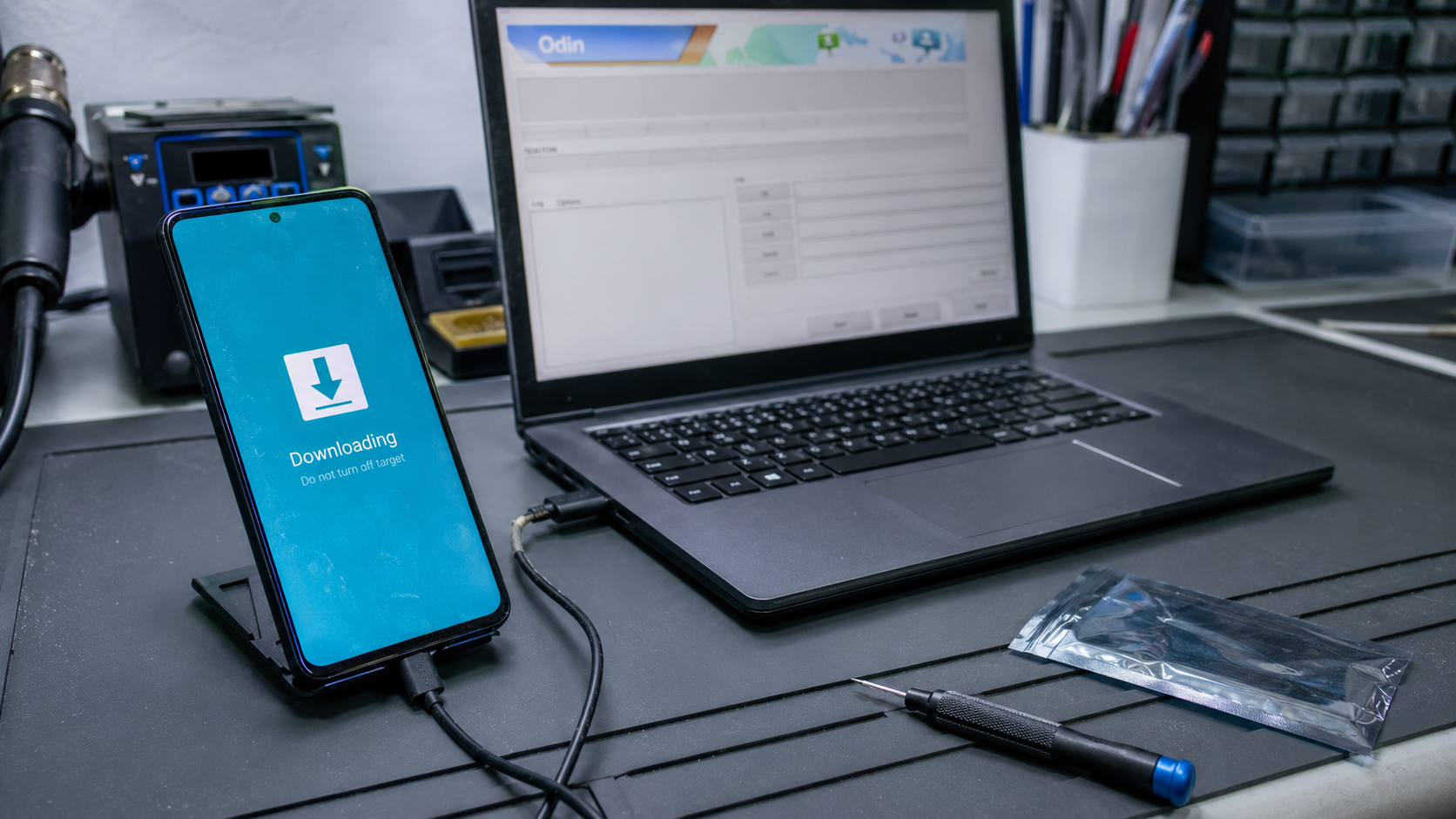
This guide is for owner authorized Samsung Galaxy A53 5G repair checks, mainly the SM-A536 family such as SM-A536B, SM-A536E, SM-A536U, SM-A536U1, and SM-A536W. Firmware work must match the exact model, region or carrier code, and bootloader binary. A European SM-A536B on EUX firmware is not the same repair target as a US carrier SM-A536U, even when Odin shows the same disconnect symptom.
Start with the boring checks. Confirm the phone can hold Samsung Download Mode, prove the Windows USB data path, then decide whether the flash failed because the computer lost the phone or because the package was wrong for the device. Do not reset the phone, change identifiers, or force packages from another region to make Odin move.
Check whether it is a USB drop or a flash failure
When Odin disconnects, the first question is simple. Did Windows lose the phone, or did Odin reject the firmware after a stable connection. A USB drop looks like the COM box vanishes, Windows makes a disconnect sound, Device Manager refreshes, or the log stops because the phone is no longer present. A flash failure with a stable cable usually keeps the phone visible but shows a fail message during a file check, setup connection, or partition write.
If the COM box disappears when the cable is touched, when the AP file starts, or when the phone warms slightly, suspect the cable, USB C port, PC port, driver binding, or phone board power stability. If the COM box stays present and Odin fails at the same point on each attempt, move toward package match, binary revision, CSC choice, or storage health.
Write down the exact behavior before changing anything. Odin version, Windows version, model shown on the phone, current package name, and the point where the drop happens matter. A vague note such as Odin failed again is not enough for the next repair decision.
Put the A53 into a stable Download Mode session
The Galaxy A53 5G uses Samsung Download Mode for Odin. A normal Android file transfer connection, MTP prompt, or ADB listing does not prove Odin can hold the phone during a flash. Power the phone down if it still responds. Connect the USB cable to the Windows PC. Hold Volume Up and Volume Down together while connecting the cable to the phone. Continue into Download Mode when the warning screen appears.
If the phone will not stay in Download Mode, charge it for at least twenty minutes from a wall charger, remove the case, and check both volume buttons. A weak button can make entry unreliable. A weak battery or damaged USB C port can make the screen appear once and then drop as soon as the PC tries to talk to it.
If the phone is stuck on a Download Mode warning after a failed attempt, a forced restart is the safe first exit check. Hold Volume Down and Power until the screen goes black and the phone restarts. If it returns to Download Mode by itself, stop pressing Odin controls and inspect the cable path, buttons, and firmware state. Repeated flash attempts on an unstable connection rarely improve the situation.
Use one clean Windows driver stack
Samsung provides a current Android USB Driver for Windows in the v1.9 line. Install it with the phone disconnected, close Odin, Smart Switch, Kies remnants, Android platform tools, phone transfer tools, and any other software that may open the device. Restart Windows before testing again.
On Windows 10 and Windows 11, Device Manager is more useful than the driver installer result. Keep Device Manager open while the A53 sits in Download Mode. Connect the phone with a short data capable cable and watch for a new Samsung, modem, USB composite, or unknown device entry. The category can vary. The refresh is the important part.
- If Device Manager does not refresh at all, do not reinstall Odin. Test cable, port, battery state, and the A53 USB C connector.
- If Device Manager shows a warning device, remove that failed binding, restart Windows, and reconnect the phone in Download Mode.
- If Device Manager reacts but Odin stays blank, close competing phone tools and reopen Odin in a quiet session.
- If another Samsung phone holds Download Mode on the same PC and cable, move the A53 port and board condition higher on the list.
Do not stack random driver packs. One clean Samsung driver is easier to diagnose than three old packages and a half removed phone suite competing for the same interface.
Test the cable path under load
Many A53 disconnect cases only appear after the flash begins. The phone charges at the bench, Windows makes a normal sound, Odin fills the COM box, and then the session drops when the AP file starts transferring. That points to a data path that works lightly but fails under sustained transfer.
Use a short known data cable. Connect directly to a laptop USB port or a rear motherboard port on a desktop. Avoid hubs, docks, monitor ports, front case extensions, loose adapters, and long USB C chains while diagnosing. Change one variable at a time so the result means something.
Inspect the A53 USB C port with light. Lint can let a cable charge while the data pins sit badly. A port that moves when the plug is nudged is a repair warning. If Odin disconnects when the cable is touched, stop flashing and repair the physical connection first. Firmware cannot compensate for a port that opens during a write.
If the phone drops on two known good cables and two clean Windows machines, do not keep chasing software. Suspect the USB C sub board, connector damage, battery instability, water exposure, or board level power trouble. That is a repair intake decision, not an Odin setting decision.
Read the package name before pressing Start again
A Galaxy A53 can disconnect because the USB path is bad, but a wrong package can create a second problem after the connection is fixed. Check the exact model and region before another attempt. The SM-A536B EUX channel, for example, has Android 14 builds in the A536BXXS series. A package named for SM-A536B EUX is not a safe match for SM-A536E, SM-A536U, or a carrier locked variant.
Check the bootloader binary in the package and the phone state. Samsung firmware normally will not allow a lower binary revision to replace a higher one. If the device still boots, check Settings, About phone, Software information, then save the build number and service provider software version. If it does not boot, use the model and Download Mode information that is still visible, plus box or purchase records when available.
The HOME CSC and CSC choice also matters. HOME CSC is commonly used when the goal is to keep user data during a matching firmware reinstall. CSC can wipe. If the owner has not backed up photos, messages, authenticator recovery codes, Secure Folder data, work profile data, and banking app access requirements, do not turn a USB disconnect job into a data loss job.
Know what PASS and FAIL really tell you
An Odin PASS result tells you the tool completed its transfer and write sequence. It does not guarantee that Android will boot cleanly after the restart. A Galaxy A53 can show PASS and then hang because the wrong regional package was used, because HOME CSC preserved damaged user data, because the phone had a storage fault, or because the battery or USB path dropped during a late stage in a way the owner did not notice.
An Odin FAIL result tells you less until you know whether the phone stayed connected. If Windows lost the device, fix USB first. If the device stayed present and the same stage fails repeatedly, check package match and device condition. If the A53 shows a red Download Mode message about a blocked binary or incompatible revision, stop trying nearby packages. The repair path is the correct build, not more force.
When a phone still boots after a failed attempt, back up before doing anything else. When it only reaches Download Mode, explain the data risk clearly. Firmware repair can be appropriate for a failed OTA or corrupted system image, but it is not a data recovery promise.
Use this bench decision path
- If the A53 is not in Download Mode, enter Download Mode first and do not judge Odin from normal Android mode.
- If the COM box appears and then disappears, check Device Manager and treat the case as a USB stability fault.
- If Device Manager never refreshes, test a known data cable, direct USB port, battery charge, and the phone USB C connector.
- If Windows sees the phone but Odin drops during AP transfer, test a second clean PC before another firmware attempt.
- If the phone disconnects when the plug moves, stop flashing and repair the physical port path.
- If the connection holds but Odin fails at the same file or partition, verify exact SM-A536 model, region, carrier code, and binary revision.
- If Odin shows PASS and Android still will not boot, decide between waiting through the first boot, recovery cache checks, data preserving reinstall, or repair intake based on the exact screen.
- If ownership, account verification, or warranty status is unclear, stop. A firmware tool is not a way around authorization.
When the A53 still boots into Android
A working Android session changes the safest next move. Back up first. Then check the current Android and One UI version, free storage, recent OTA history, build number, and service provider software version. A failed monthly update on a SM-A536B EUX phone is a different job from a random disconnect on a damaged USB port.
Use Android only for information and backup unless USB debugging was already enabled and trusted on that PC. ADB can sometimes reboot a trusted phone into Download Mode, but it cannot repair an Odin COM drop after the phone is already in Download Mode. It also cannot be enabled from a locked or non booting phone.
If the owner came from a failed OTA, ask whether the phone downloaded the update normally, ran out of battery, lost storage space, or restarted into recovery. If the problem started after a third party package or a package from another model, treat package mismatch as a serious risk and stop guessing.
Related HalabTech guides
If the A53 problem looks more like no COM detection than a mid flash disconnect, compare it with the HalabTech repair note for Galaxy A52 USB driver installed but Odin COM stays blank. If the phone is a newer A series model that enters Download Mode but still does not appear after driver work, the Galaxy A54 Download Mode missing from Odin after drivers path is closer.
Stop before firmware makes the case worse
Do not use Re Partition, NAND erase, PIT files, or forced packages during a disconnect diagnosis. Those controls belong to narrow repair cases with verified files and a known reason. They are not normal fixes for a cable that drops, a dirty USB C port, or a Windows driver binding.
The clean repair order is to stabilize Download Mode, prove the Windows driver path, test the cable and port under load, confirm the exact SM-A536 model and region, then choose whether firmware repair is still needed. If the phone cannot keep a stable USB session on known good equipment, stop at hardware intake. If the session is stable, protect the data and match the package before pressing Start again.