
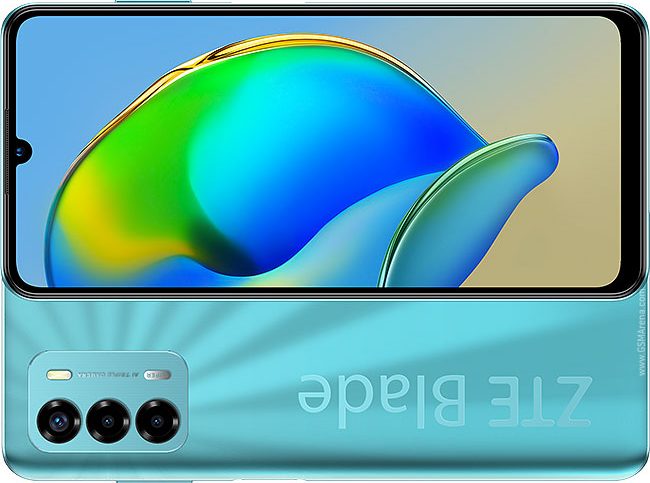
تخطي حساب جوجل لهاتف ZTE Blade V40 Vita (ZTE 8045) باستخدام DFT PRO

مقدمة
يواجه العديد من مستخدمي هواتف ZTE Blade V40 Vita (ZTE 8045) مشكلة تأمين FRP (Factory Reset Protection) بعد إعادة ضبط المصنع، مما يتطلب إدخال حساب جوجل المستخدم سابقًا. في هذا المقال، سنشرح طريقة تخطي حساب جوجل باستخدام أداة DFT PRO، وذلك لأغراض تعليمية فقط لمساعدة المستخدمين الذين نسوا بيانات حسابهم.
تنويه: هذا المقال مخصص فقط للأغراض التعليمية، ولا يتحمل الموقع أو كاتب المقال أي مسؤولية عن الاستخدام غير القانوني لهذا الشرح.
المتطلبات الأساسية
قبل بدء العملية، تأكد من توفر المتطلبات التالية:
✅ جهاز كمبيوتر يعمل بنظام Windows.
✅ كابل USB أصلي أو عالي الجودة.
✅ تثبيت أداة DFT PRO على الكمبيوتر.
✅ شحن الهاتف بنسبة 50% على الأقل لتجنب أي مشاكل أثناء العملية.
خطوات تخطي حساب جوجل على ZTE Blade V40 Vita
1️⃣ تشغيل أداة DFT PRO
- قم بفتح أداة DFT PRO على جهاز الكمبيوتر.
- تأكد من تحديث الأداة إلى أحدث إصدار لضمان التوافق مع هاتفك.
2️⃣ توصيل الهاتف بوضع EDL (Emergency Download Mode)
- قم بإيقاف تشغيل الهاتف تمامًا.
- اضغط معًا على زر رفع الصوت + زر خفض الصوت في نفس الوقت.
- أثناء الضغط، قم بتوصيل الهاتف بالكمبيوتر باستخدام كابل USB.
- انتظر حتى يتم التعرف على الجهاز في DFT PRO.
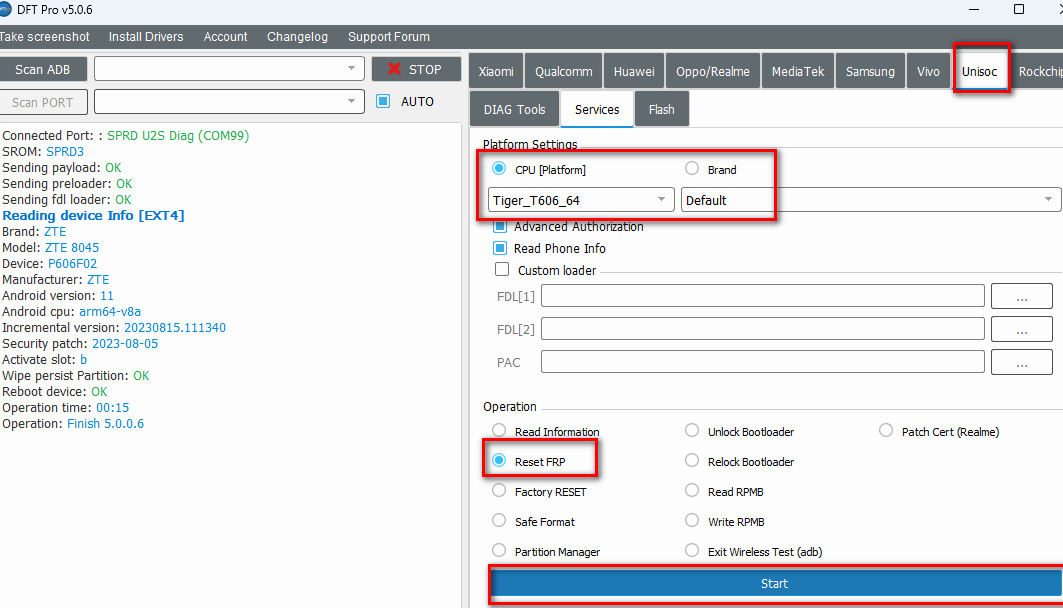
3️⃣ بدء عملية تخطي حساب جوجل (FRP Bypass)
- داخل واجهة DFT PRO، اختر خيار Bypass FRP لهاتف ZTE Blade V40 Vita.
- اضغط على زر Start لبدء العملية.
- انتظر حتى يتم الانتهاء من العملية بنجاح.
4️⃣ إعادة تشغيل الهاتف
- بعد انتهاء العملية، قم بفصل الهاتف من الكمبيوتر.
- أعد تشغيل الهاتف، وستجد أنه قد تم تخطي حساب جوجل بنجاح.
نصائح مهمة
✔ قم بتحديث الهاتف إلى آخر إصدار بعد إتمام العملية لتجنب مشاكل الأمان.
✔ استخدم هذه الطريقة فقط إذا كنت المالك الشرعي للهاتف.
✔ لا تشارك بيانات حسابك مع الآخرين لتجنب قفل FRP مجددًا.
خاتمة
بهذه الخطوات، يمكنك تخطي حساب جوجل على ZTE Blade V40 Vita بسهولة باستخدام أداة DFT PRO. تأكد دائمًا من اتباع الإرشادات بدقة وتجنب أي استخدام غير قانوني لهذه الطريقة.
📌 إذا واجهت أي مشاكل، لا تتردد في مشاركة استفسارك في التعليقات!
🔹 فريق حلب تك
Bypassing Google Account on ZTE Blade V40 Vita (ZTE 8045) Using DFT PRO
Introduction
Many ZTE Blade V40 Vita (ZTE 8045) users face the FRP (Factory Reset Protection) lock issue after performing a factory reset, requiring them to enter the previously used Google account. In this guide, we will explain how to bypass Google Account using the DFT PRO tool, strictly for educational purposes to help users who have forgotten their login credentials.
Disclaimer: This guide is intended for educational purposes only. The website and the author are not responsible for any misuse of this method.
Prerequisites
Before starting, ensure you have the following:
✅ A Windows PC.
✅ A high-quality USB cable.
✅ DFT PRO tool installed on your PC.
✅ Your phone’s battery is at least 50% charged to avoid interruptions.
Steps to Bypass Google Account on ZTE Blade V40 Vita
1️⃣ Launch the DFT PRO Tool
- Open DFT PRO on your PC.
- Make sure the tool is updated to the latest version for compatibility with your device.
2️⃣ Connect the Phone in EDL (Emergency Download Mode)
- Turn off the phone completely.
- Press and hold Volume Up + Volume Down buttons simultaneously.
- While holding the buttons, connect the phone to the PC using a USB cable.
- Wait for the tool to detect your device.
3️⃣ Start the FRP Bypass Process
- In DFT PRO, select Bypass FRP for ZTE Blade V40 Vita.
- Click on Start to begin the process.
- Wait for the process to complete successfully.
4️⃣ Reboot the Phone
- Once the process is completed, unplug the phone from the PC.
- Restart the phone, and you will find that the Google account has been successfully bypassed.
Important Tips
✔ Update your phone to the latest software version after the process to avoid security issues.
✔ Use this method only if you are the legal owner of the device.
✔ Do not share your Google account credentials with others to prevent FRP lock issues in the future.
Conclusion
By following these steps, you can easily bypass the Google account lock on ZTE Blade V40 Vita using the DFT PRO tool. Always follow the instructions carefully and avoid any unauthorized use of this method.
📌 If you have any questions or issues, feel free to ask in the comments!
🔹 Halab Tech Team


 Telegram Channel
 WhatsApp Channel
 Facebook Page
 YouTube Channel